





President's Message: How's TEL Doing?
TEL appreciates working with hundreds – sometimes thousands - of Dealers and we want to know what you guys/gals think! Jessie has designed a survey included here that we hope you’ll fill out for us! Good completed surveys get a prize!!
Click Here to Take the Survey
Years ago I visited many of you in a motor home – just to say “HI!” and tell you face-to-face that we appreciate your business! We had some good talks and you had some tough questions and good advice! It’s tough – in this foul economy – to do that again (though I plan to soon), and we don’t have NATA and other shows like we did then, so it’s difficult to get your direct views, gripes, suggestions (and a few kudos, we hope). Fill out the survey, send me a letter or an email (john@tel-electronics.com) or call at 800-748-5022, X. 3311, or drop in – but let us know how we’re doing, please! TEL is dedicated to helping you make, save or manage money – while you help your customers make, save or manage money! If we can do that, then TEL is successful, too!
So, how’s TEL doing by you??
Good hunting,
John L. Gunter Sr. |
Customized Brochures & Product Training
TEL wants to help you sell more! To do this, we have implemented a new dealer training program for all interested dealers. This new program involves training your sales and support staff on all TEL products, discussing specific sales campaigns for your area, and providing a customized dealer packet for your company.
It's a simple process:
- Schedule a training webinar with TEL's marketing department;
- Receive and distribute your customized dealer packet to all of your sales and support staff;
- Organize and implement a focused sales campaign in your area;
- Receive leads and ongoing support from TEL throughout the sales campaign;
- Close sales and generate business.
The dealer packet will contain the following items:
- Product Catalog with Dealer Prices
- Product Brochures (w/your name & logo)
- Overview Presentation (Intro to TEL electronics)
- Product Presentations (PowerPoint)
- Support Documents
- Installation Documents (new/upgrades)
- Product Manuals
- PM Port Testing Tool
- Links to Demo Downloads
We are excited by this new training program and feel that it will significantly improve your company's ability to sell and support TEL products.
To get started, call Jessie Warner @ 800-748-5022 x3302.
TEL PRODUCTS ARE DESIGNED, PRODUCED, SOLD AND
SUPPORTED IN THE U.S.A.
|
Net 30 Finance Policy
Our motto at TEL is to make money, save money and manage money and our Net 30 policy is crucial in achieving this goal.
TEL is the leader in the Call Accounting industry, our products are the best and our qualified Dealers receive special discounts on all TEL products. You can make money by “selling TEL”.
You can save money by returning your trade-in system within the Net 30 time frame and receiving credit on your account for purchase of a new system. Remember that Net 30 is the “key” so ship back those trade-in systems ASAP.
In order for us to manage our resources (money), just like you, we expect/need to receive your payment in 30 days. We appreciate our dealers who adhere to that policy and we want to encourage those dealers who have been “lax” in payment to “step it up”. Your dealer discount is based on TEL’s Net 30 policy and can be compromised by delinquent payments. No one wants that to happen!!
Questions, let us know. As always, we appreciate your business. |
Tech's Corner: WIN-SENSE 32 Demo
A free trial version of the WIN-SENSE 32 call accounting software can be downloaded from TEL's website by clicking here. This free demo can be installed on a customer's local network and will process up to 200 calls before it stops working.
If you don't want to actually install the demo, you can see how it works by following the demo install instructions. If you do want to do a full installation, it is better to follow the full version instructions.
Below are the installation instructions for the WIN-SENSE 32:
- Install the Program. Insert the WIN-SENSE 32 CD or Download the Demo and double-click on Setup, if it doesn’t automatically start up.
- Copy files, if needed. If you are upgrading from a demo install, you can copy the setup files from the demo version and paste them into the full version.
- Determine how your Phone System (PBX) will interface with the call accounting system - IP, File, or Serial.
- Setup SMDR Data. Open SMDR Setup
(Start > All Programs > WIN-SENSE 32 > SMDR Setup).
- On the left side, select Site Information.
- Enter your site ID, along with your area code and exchange.
- Setup your PBX settings. Go to File > Setup PBX. Choose your PBX and select OK.
- On the left side, click on the + sign next to Collection Points. Select the desired collection method and enter the required information.
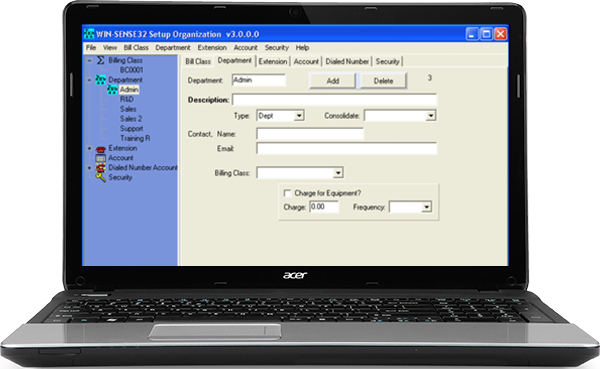
- Setup Organization Lists. Open Setup Organization.
- On the left side, click Billing Class. Setup markups and surcharges for different types of users.
- Import extensions, departments, and billing classes. Go to File > Import > Department and select the .csv file you want to import. Do the same thing for other organization levels.
- Run SMDR Collection Module. Open the desired collection module - IP Collect, Serial Collect, or File Collect SMDR.
- Click Connect/Enable to start collecting.
- Right click and select Setup for additional options.
- Run SMDR Process Module. Open Process SMDR.
- Select the Collection module(s) you will be using and deselect the rest (IP/Serial/File).
- If you see SMDR data strings processing, the WIN-SENSE is setup correctly.
- Right click for more options and to setup Alarms.
- Setup Email and Scheduler. To have reports manually or automatically emailed to you, you will need to setup the Email (RBE). To schedule reports, open the Scheduler module. These programs need to be always running if you want to email or schedule reports.
- Double Check. Make sure that the computer has the SMDR Collect and SMDR Process modules open.
- Run Reports. Open Reports.
- Select a report from the home screen or by using the menu at the top.
- Enter the parameters of the report and click OK.
- Click on the
button to view PDF reports or to change the report viewing method.
- For additional questions, refer to the WIN-SENSE 32 v3.0 Manual (found in Support section of the website)
|